Full coverage
Forward all business calls when you want the receptionist answering first.
Roofer Answering takes calls you forward, asks your roofing intake questions and sends you the details. Try a call in the browser demo, then request a free trial to teach your receptionist about your business.
Free trial on request: 14 days, up to 100 minutesPrivacySecurity
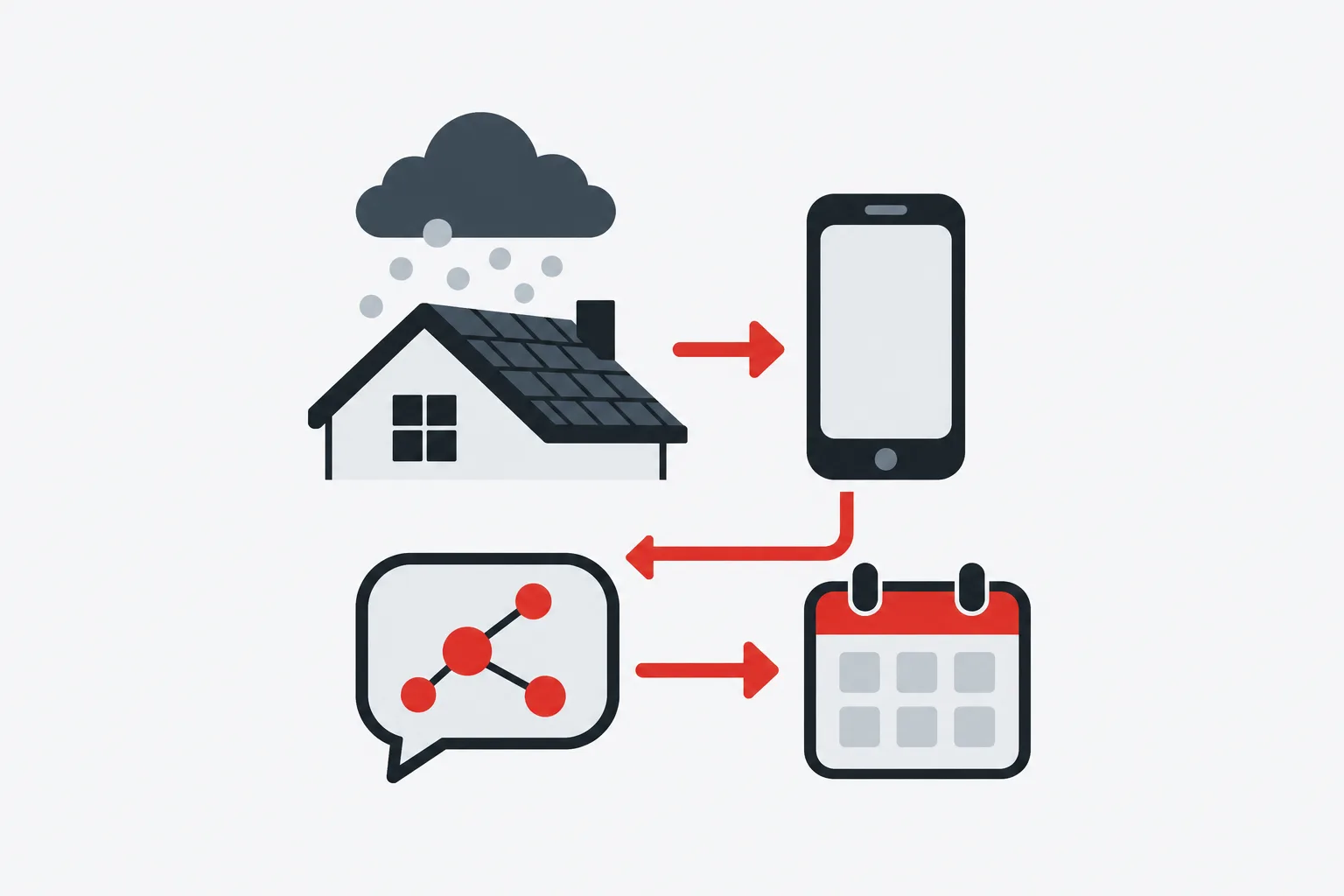
You keep your business number and choose when calls forward to your receptionist. Send all calls, or use coverage for no answer, a busy line or after hours.
Forwarding decides which calls reach your receptionist, so choose it around how your office works. A roofer who answers between site visits might use no-answer forwarding. An office that closes before evening rain might choose after-hours coverage.
We provide a local number in your area code and instructions for your carrier or phone system. Follow those steps, then place a test call before sending customer calls through. Your receptionist can answer day and night once forwarding is active; calls that stay on your existing line follow that line's setup.
Your receptionist answers as your business, identifies itself as a virtual assistant and gives a recording notice. It asks roofing intake questions using the services, area and urgency rules you provide.
The onboarding chat and your website give your receptionist the business information it uses on calls. Tell it what work you take, which areas you cover and how you handle pricing questions. A homeowner asking about hail damage needs different intake from someone checking on an existing job.
Your receptionist gathers the request, flags urgency and takes a message or books an appointment. For an urgent call, it can warm transfer or page your on-call contact in your chosen order. It routes insurance questions without giving claim advice or negotiating. Hear an example through the browser call demo.
You receive an email and app push alert for each call, with a summary, urgency tag, transcript and recording. Your dashboard keeps call details together, and a daily email digest helps you review them.
Call alerts give you a written account of what the caller said, with the recording available for review. An estimate request and a rain leak can carry different urgency tags based on your instructions. Open the transcript when you need the wording behind a summary.
If you choose appointment booking, your receptionist books into Google Calendar. If you prefer to confirm visits yourself, it takes the details for your callback instead. You can enter the call summary into the roofing software your office uses. The dashboard also shows usage and settings, so you can review both calls and how the service is set up.
You make a test call before going live, then review the greeting, intake and result. Later, tell the AI in plain words when your hours, services or on-call instructions change.
A test call lets you hear your own setup before using it with customers. Ask for a roof inspection, then check the intake details and where the appointment or callback request appears. Try an urgent scenario with your on-call contact available to check the handoff.
Review the disclosure, business information and alert destination as part of that test. If the response needs a change, update the instructions and call again. You can keep adjusting settings after launch as hours or responsibilities change. Request a free trial with guided setup; we'll email your sign-in link when ready so you can configure your business.
Yes, you keep your existing business number and forward the calls you want us to answer. We give you a local number and a forwarding guide for your carrier or phone system. You choose all-call, no-answer, busy or after-hours forwarding and test the arrangement before going live.
Your receptionist says it is a virtual assistant and announces that the call is recorded at the start of each conversation. That introduction stays on. You receive the recording and transcript with the call details, so you can review what was said alongside the summary.
Your receptionist takes the question and caller details for your callback when the answer is outside the business information you supplied. Give it clear services, exclusions and pricing instructions during onboarding. Review the call summary afterward and update your settings when an unanswered question reveals something useful to add.
Your urgency rules tell the receptionist which requests need your on-call contact. It can warm transfer the call, giving that person a short summary before they press 1 to accept, or page them in the order you set. The call alert also includes an urgency tag for review.
Yes, your receptionist speaks English and Spanish, and a caller can switch languages during the conversation. It uses the business information you provide when handling those calls. You can try a Spanish conversation in the demo, then include the questions your roofing office needs during onboarding.
Open the browser demo and act out a homeowner's call. Then request a free trial to configure your own greeting, intake and forwarding; we'll email your sign-in link when ready.